
How to switch Windows light and dark themes automatically
Schedule light and dark themes and fix apps that do not follow the switch.
Open System theme in Screen Eye Care, enable theme management, and choose fixed times or sunrise and sunset. The schedule selects light during the day and dark at night. Screen Eye Care must stay running. This feature is Windows-only and affects Windows surfaces and apps that support following the Windows theme.
Distinguish system themes, app appearance, and screen warmth
| Setting | What it affects | What it does not control |
|---|---|---|
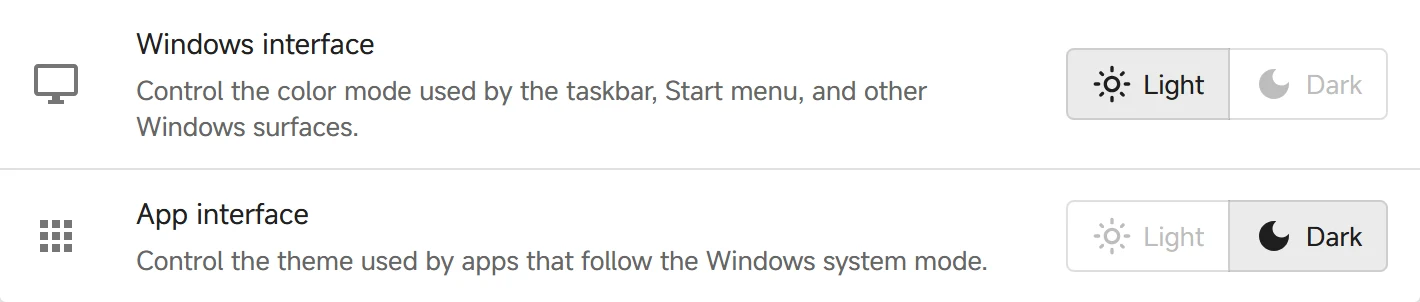
| Windows interface under System theme | Taskbar, Start menu, and other Windows surfaces | Color temperature or the monitor backlight |
| App interface under System theme | Apps that use the Windows system mode | Every app’s independent appearance preference |
| Screen Eye Care theme under General settings | The eye-care app’s own light, dark, or system appearance | The Windows day and night schedule |
| Color temperature schedule under Eye care | Screen warmth and software brightness | Whether app interfaces use a dark theme |
The appearance button on this website only changes the website. Configure system theme switching inside the installed desktop app.
Set up a schedule with fixed times
- Open System theme in the Windows desktop app.
- Enable Manage the system color theme.
- Under Automatic schedule, set Schedule mode to Fixed times.
- Set Day starts and Night starts. For example, 07:00 and 20:00 select light for the day and dark for the evening. Choose times that fit your routine rather than treating these as required values.
- Check the times and phase in Current schedule, then close the main window while leaving the app running in the tray.
Fixed times use the computer’s local system time and do not require location access. The start times are shared with the eye-care color temperature schedule. If both features use fixed times, changing a boundary in one also affects the other; check both afterward.
Switch at sunrise and sunset
Choose Sunrise and sunset as the schedule mode and configure the location used to calculate solar times. You can search for a city, enter coordinates manually, or select Use current location. Only Use current location requests system location permission; city search and manual coordinates do not need that permission.
City search contacts the Open-Meteo geocoding service. Entering coordinates manually avoids that search request. After you choose a location, daily solar calculations use the saved coordinates and system time zone locally; ordinary switching does not need continuous internet access or location tracking.
Check Today’s solar times against your region. Recheck the saved location and system clock if you move to another city or change time zones. The eye-care sunrise and sunset schedule shares the same location, so the two features do not need separate location setup.
Understand temporary theme changes
While an automatic schedule is running, the tray panel can temporarily change the Windows interface theme, app interface theme, or both. The choice lasts until the next scheduled boundary. Select Resume automatic to apply the schedule again immediately.
If theme controls are missing from the panel, click Customize panel at the top right and enable System theme. Hiding the section does not disable an active theme schedule.
A change made through Windows Settings or another program is also treated as an external temporary override. Screen Eye Care respects that choice instead of immediately reverting it. If the schedule looks correct but the current appearance differs from its phase, check for a temporary-theme or external-change message first.
To keep a permanent dark theme, or keep Windows and apps in different modes, set Schedule mode to Off and choose the two themes separately. An active automatic schedule selects light or dark for both at its boundaries, so the main view’s manual controls are disabled while it is running.
Troubleshoot a missed change or an app that stays light
- The taskbar changes, but one app does not: open that app’s appearance settings and select System or its equivalent. An app without system theme support cannot be forced to follow it. Some apps may also need their window reopened to update.
- Manual theme controls are disabled: check whether an automatic schedule is active. Turn the schedule off for permanent manual choices, or use the tray panel for a temporary change.
- Nothing changes at the expected time: confirm the tray icon is present, theme management is enabled, and the schedule mode is correct. Then check the system clock, time zone, and any temporary override.
- Scheduling stops after a restart: check Launch at startup under General settings. The app must be running; it does not keep executing theme changes after you quit it.
- The screen does not become warmer: system themes change interface appearance. Enable eye-care color temperature and its own schedule if you also want screen warmth to change.
For a useful issue report, include the schedule mode, day and night boundaries, current phase, override state, and the actual appearance of both Windows and apps.
For the brightness of the display itself, see independent monitor brightness. To hold break popups during a presentation, read break reminder setup.